
The Stage Manager feature allows users to run multiple apps simultaneously on the iPad screen—for instance, if you want to watch a YouTube video while typing in Word, or stay active in a WhatsApp chat while watching videos on Instagram. Therefore, enabling Stage Manager on your iPad is essential to make the most of this capability.
A year ago, this feature was not available on the 11th-generation iPad (iPad A16). However, with the latest OS update, Stage Manager can now be used on the iPad A16 as well.
Here are the steps to show or enable Stage Manager on your iPad:
1. Device Requirements
Ensure your iPad supports this feature—such as iPad Pro 11-inch (all generations), iPad Pro 12.9-inch (3rd generation or later), iPad Air (5th generation or later), or the iPad A16 (which is the latest entry-level iPad model)—and is running at least iPadOS 16.1 or newer.
2. Via Control Center
- Open Settings on your iPad.
- Swipe down from the top-right corner of the screen to open the Control Center (or navigate to Multitasking & Gestures).
- Look for the Stage Manager icon (a rectangle icon with three small dots beside it).
- Tap the icon to enable it. When active, the icon will turn blue.
- If the icon is not listed, add it by going to Settings > Control Center, then add Stage Manager to the included controls list.
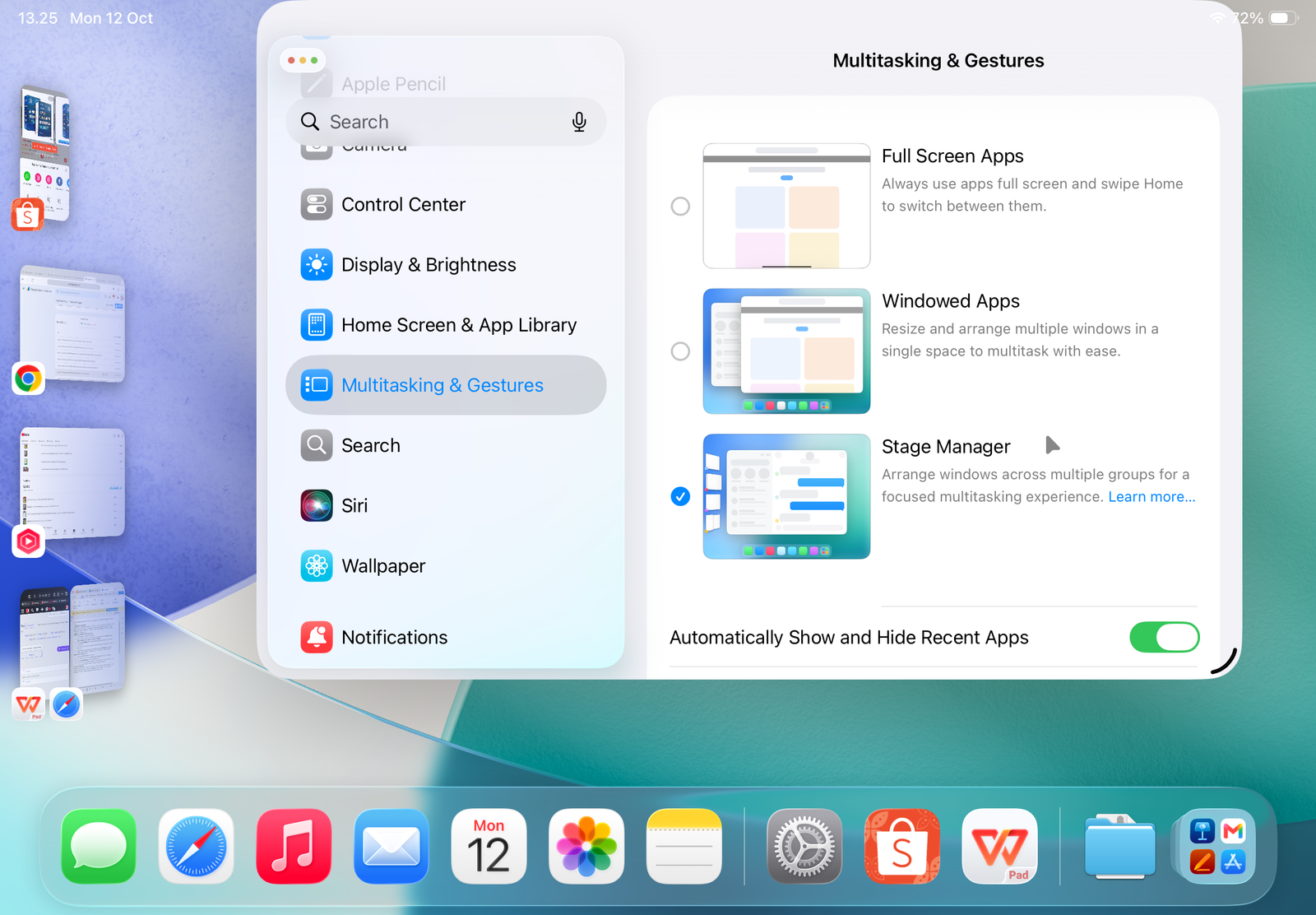
3. Via Settings Menu
- Open the Settings app on your iPad.
- Scroll down and select Multitasking & Gestures.
- Select Stage Manager to turn it on.
- From this menu, you can also choose whether to display Recent Apps on the left side and the Dock at the bottom while using Stage Manager.
4. How to Use Stage Manager
Once activated, open any app. You can drag the bottom-left corner of the app window to resize it, or drag another app from the Dock or App Library to open multiple windows on a single screen.