
Gemini is one of the tools frequently used by students nowadays. You can use Gemini to search for content, create images, or ask questions. Gemini will respond to your questions as long as you still have available usage limits.
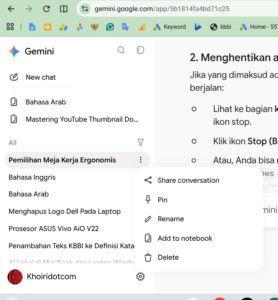
However, if you ask questions frequently, your Gemini chat history may eventually become crowded. Therefore, you may want to delete some conversations to keep your chat history neat and organized. To delete chats in Gemini, please follow these steps:
- Open Gemini in your browser.
- Open your chat history on the left side of Gemini.
- Select the conversation or chat you want to delete.
- Click the three-dot menu.
- Select Delete.
- A confirmation message will appear, asking whether you are sure you want to delete the chat history. Keep in mind that deleting a conversation may also remove access to images, videos, articles, or other content you previously created in that Gemini conversation.
- If you are sure, click Delete.
- Your conversation will then be deleted.
That is how to delete conversations or chats in Gemini. If you have any questions, feel free to write them in the comments section below.