
When you use the Pages app on an iPad for typing or completing other tasks, you need to adjust the paper size according to your needs. Therefore, setting up the right paper size is necessary. We have embedded a video below to provide readers with a clearer understanding.
To adjust or change the paper size in Pages on an iPad, please follow these steps:
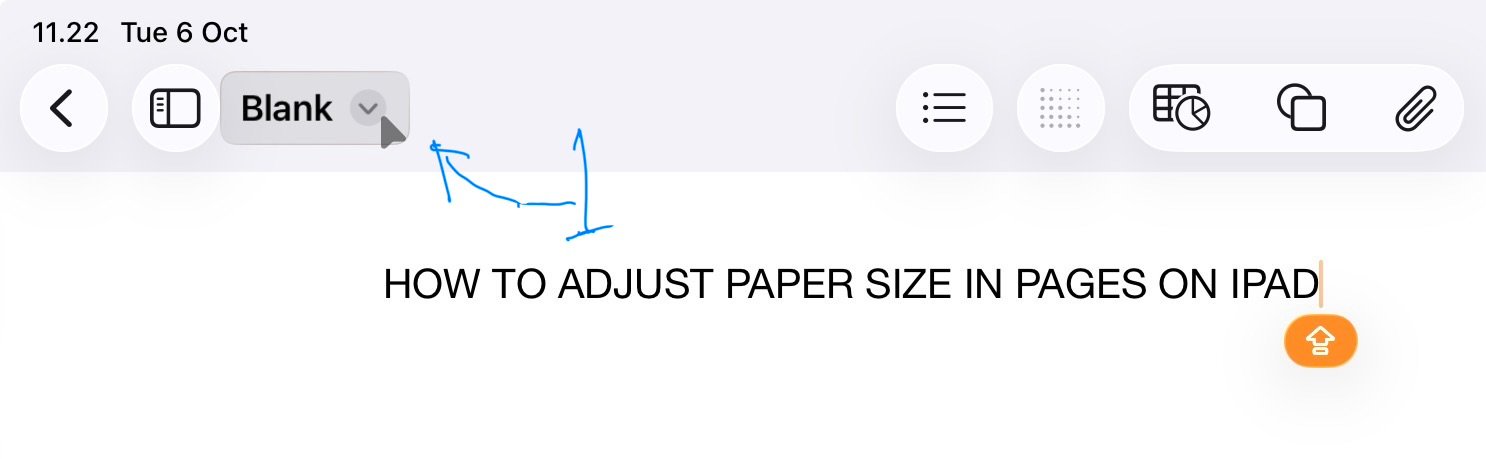
- Tap the down arrow next to the document name in the top-left corner.

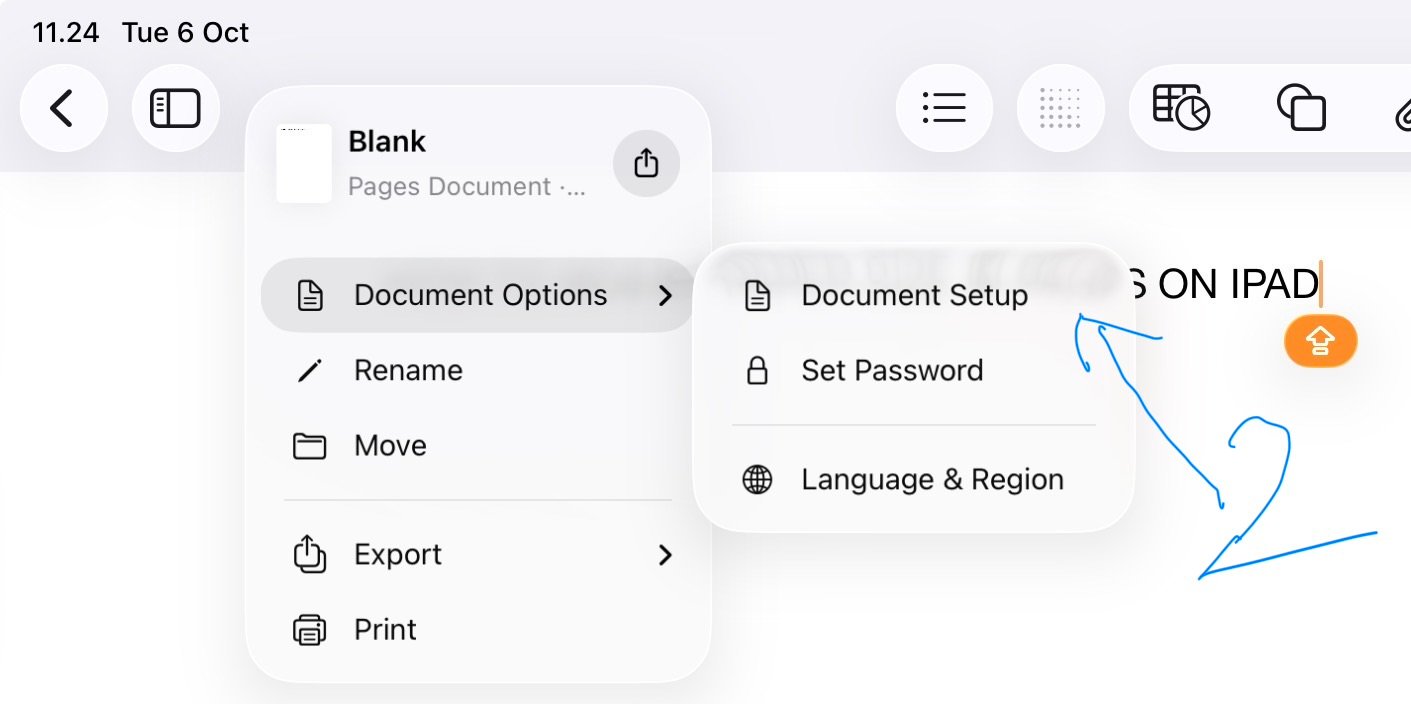
- Tap Document Options.
- Tap Document Setup.
- Under Paper Size, select your desired paper size.
- Choose A4, Letter, or Custom.
- Select Custom if you want to use a personalized size, such as B5 or F4.
- Tap the checkmark icon to save and finish setting up.
In the document setup options, you can also select the document layout, choosing between portrait or landscape mode.